Home Office Ergonomics: Work Smarter, Hurt Less
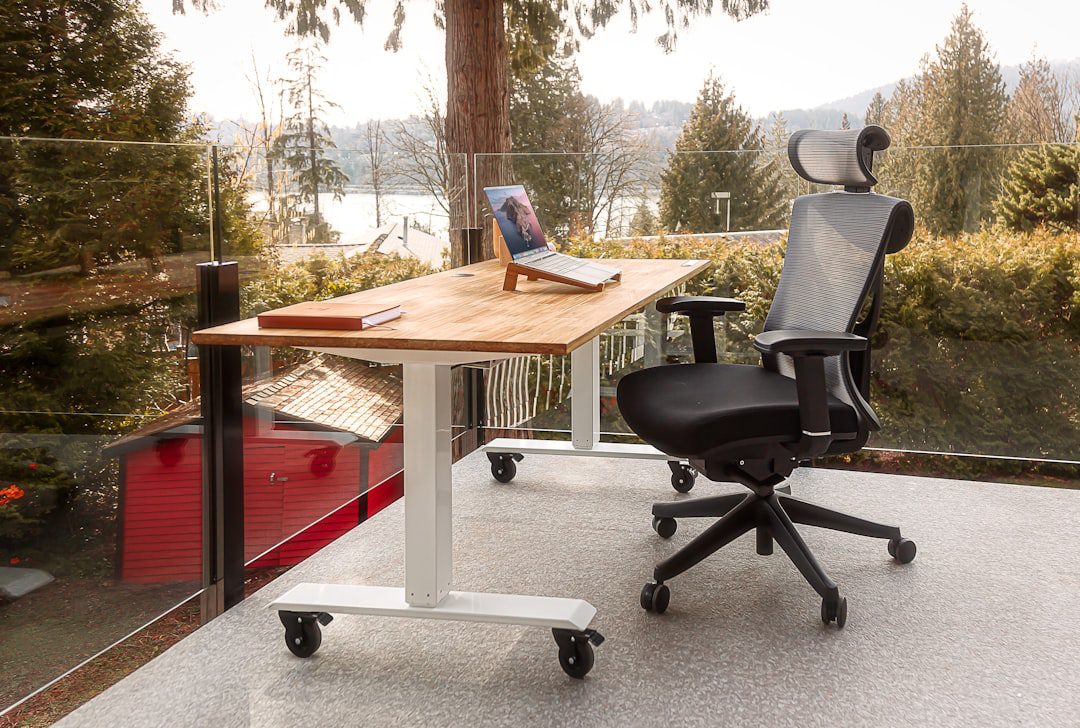
If your back aches by noon and your neck feels like concrete by 3 PM, your workspace is working against you. Home office ergonomics — the science of designing your workspace to fit your body — is one of the highest-leverage investments a remote professional can make. Get it right, and you gain energy, focus, and longevity. Get it wrong, and you’re quietly building injuries that compound over years.
This guide gives you everything you need to build a home office that supports your body, sharpens your output, and actually feels good to work in.
Why Home Office Ergonomics Matters More Than Ever in 2026
Remote and hybrid work isn’t a trend anymore. It’s the dominant professional reality. According to the U.S. Bureau of Labor Statistics, tens of millions of Americans now work from home regularly — many at makeshift setups built from kitchen chairs and laptop screens.
The cost of ignoring ergonomics is steep. Consider these realities:
- Musculoskeletal disorders (MSDs) are the leading cause of workplace disability in the U.S.
- Poor posture increases spinal disc pressure by up to 200% compared to standing upright.
- Carpal tunnel syndrome and repetitive strain injuries can sideline professionals for months.
- Eye strain from poor monitor placement reduces productivity by a measurable, significant margin.
Furthermore, the productivity gains from a proper ergonomic setup aren’t theoretical. A well-designed workspace reduces fatigue, sharpens concentration, and keeps you in deep work longer. That’s a direct performance edge.
The Foundation of Home Office Ergonomics: Your Chair
Your chair is the single most important piece of equipment in your home office. Most people spend 6 to 9 hours a day seated. As a result, the wrong chair quietly destroys your posture, your comfort, and eventually your spinal health.
What to Look for in an Ergonomic Chair
Not every expensive chair is ergonomic. However, every good ergonomic chair shares these core features:
- Lumbar support: Adjustable lower-back support that maintains your spine’s natural curve.
- Seat height: Should allow your feet to rest flat on the floor with knees at roughly 90 degrees.
- Seat depth: Leave 2–3 inches between the edge of the seat and the back of your knees.
- Armrests: Adjustable height so your shoulders stay relaxed — not hunched or lifted.
- Backrest recline: A slight recline (100–110 degrees) reduces spinal compression.
Top Chair Picks for 2026
In 2026, the most consistently recommended ergonomic chairs for home offices include:
- Herman Miller Aeron — Industry benchmark, exceptional lumbar support, built to last decades.
- Steelcase Leap V2 — Outstanding for people who shift positions frequently throughout the day.
- Secretlab Titan Evo — A strong budget-friendly crossover pick with solid lumbar adjustment.
- Branch Ergonomic Chair — Best value for remote workers on a mid-range budget in 2026.
Most importantly, always try before you buy when possible. A chair that works for a 5’5″ frame may not suit someone 6’2″.
Monitor Placement: The Overlooked Pillar of Home Office Ergonomics
Your monitor placement drives your neck position for every minute you spend at your desk. Poor placement leads to a forward head posture — sometimes called “tech neck” — which adds enormous strain to your cervical spine.
The Correct Monitor Setup
Follow these specific guidelines to dial in your screen position:
- Distance: Place the monitor 20–28 inches from your eyes (roughly arm’s length).
- Height: The top of the screen should sit at or just below eye level.
- Tilt: Tilt the screen back 10–20 degrees to reduce glare and neck flexion.
- Dual monitors: Center them if you use both equally. Place the secondary screen slightly to the side and angled inward.
Laptop Users: You Need a Separate Monitor
Laptops are productivity tools, not ergonomic workstations. Using a laptop screen directly means your head drops forward — every single time. Therefore, if you work primarily from a laptop, invest in:
- An external monitor at proper eye height
- A laptop stand to elevate the built-in screen
- A separate keyboard and mouse to keep your wrists neutral
This simple shift can eliminate neck and upper-back pain for many remote workers almost immediately.
Desk Setup and Keyboard Position
Your desk height and keyboard position determine your wrist, shoulder, and elbow health. Many professionals overlook this entirely. However, even small misalignments — repeated thousands of times daily — lead to serious repetitive strain injuries.
Ideal Desk and Keyboard Height
Here’s the correct positioning framework:
- Desk height: Elbows should rest at roughly 90 degrees when your hands are on the keyboard.
- Keyboard position: Keep it flat or slightly negatively tilted (front edge higher than back) to keep wrists neutral.
- Mouse placement: Keep the mouse at the same height as the keyboard, directly beside it — not stretched out.
- Wrist posture: Avoid resting wrists on the desk while actively typing. Use wrist rests only during breaks.
Standing Desks: Are They Worth It?
Standing desks have exploded in popularity — and for good reason. Alternating between sitting and standing every 30–60 minutes improves circulation, reduces back pain, and boosts alertness. In 2026, sit-stand desks from brands like Flexispot, Uplift, and Autonomous offer solid value across price ranges.
That said, standing all day is not the goal. The research is clear: movement variety is the actual win. Sit, stand, and move — in rotation.
Lighting and Eye Health
Eye strain (formally called computer vision syndrome) affects an estimated 65% of adults who use screens regularly. Moreover, poor lighting doesn’t just hurt your eyes — it increases fatigue, triggers headaches, and strains your focus.
Smart Lighting Principles for Your Home Office
- Natural light: Position your desk perpendicular to windows — not facing them or with them directly behind you.
- Ambient light: Match your room brightness to your screen brightness. Avoid working in a dark room with a bright screen.
- Bias lighting: Place a soft LED light behind your monitor. This reduces perceived contrast and dramatically cuts eye fatigue.
- Color temperature: Use warmer tones (2700K–3000K) in the evening to protect your sleep cycle.
The 20-20-20 Rule
Every 20 minutes, look at something 20 feet away for at least 20 seconds. This simple habit relaxes the ciliary muscles in your eyes and significantly reduces digital eye strain over the course of a workday.
In addition, reduce your screen’s blue light emission using built-in OS settings or a pair of quality blue-light-filtering glasses during evening work sessions.
Movement, Breaks, and the Anti-Sedentary Mindset
Even a perfect ergonomic setup can’t save you from the dangers of prolonged sitting. Research consistently links excessive sedentary time to cardiovascular disease, metabolic dysfunction, and musculoskeletal deterioration. Therefore, movement needs to be a deliberate, scheduled part of your workday.
Practical Movement Strategies for Remote Professionals
- Set a movement timer: Use a 30- or 45-minute interval timer to prompt you to stand, stretch, or walk briefly.
- Walking meetings: Take calls and non-visual meetings on the move. It adds thousands of steps with zero productivity loss.
- Micro-stretches at your desk: Neck rolls, chest openers, and hip flexor stretches take under 90 seconds and reset your posture.
- End-of-day walk: Replace your former commute with a deliberate 15–20 minute walk. It signals to your brain that the workday is over.
For broader professional wellness strategies, our guide on cooking guidelines for busy professionals pairs well with an ergonomic foundation — because physical health is a full-system effort.
Accessories That Encourage Movement
- Footrest: Reduces hip pressure and encourages subtle leg movement while seated.
- Balance board: Great for standing desk intervals — engages your core without demanding attention.
- Under-desk cycle: Low-intensity pedaling keeps blood circulating during long focus sessions.
Building Your Complete Home Office Ergonomics Checklist
Setting up proper home office ergonomics doesn’t require a $5,000 budget. In fact, many of the most impactful changes cost very little. Use this checklist to audit your setup right now:
Quick-Win Ergonomic Audit
- ✅ Feet flat on the floor (or on a footrest)
- ✅ Knees at approximately 90 degrees
- ✅ Lower back supported and lumbar curve maintained
- ✅ Elbows at desk height, shoulders relaxed
- ✅ Wrists neutral while typing — not bent up or down
- ✅ Monitor top at or just below eye level
- ✅ Screen 20–28 inches from your face
- ✅ No glare hitting the screen from windows or overhead lights
- ✅ Movement break scheduled every 30–45 minutes
- ✅ Hydration within arm’s reach — dehydration amplifies fatigue
If you manage a distributed team or juggle complex workflows, pairing your ergonomic setup with efficient tools is essential. Check out our Best Project Management Tools Review 2026 to optimize how you organize your workday alongside your workspace.
High-Impact Ergonomic Upgrades Under $100
- Monitor riser or arm — Correct screen height for under $30–$80
- Vertical mouse — Reduces forearm pronation and wrist strain significantly
- Lumbar cushion — Adds support to any chair you already own
- Anti-fatigue mat — Essential if you stand at your desk for any length of time
- Document holder — Clips beside your screen to prevent repetitive neck turns
Frequently Asked Questions
What is the most important element of home office ergonomics?
Your chair and sitting posture form the foundation of good home office ergonomics. However, no single element works in isolation. Chair, monitor height, keyboard position, and regular movement all interact. Address all of them for meaningful results.
How long does it take to notice benefits from an ergonomic setup?
Many professionals notice reduced neck and back tension within the first 1–2 weeks of correcting their setup. Deeper benefits — like reduced eye fatigue and improved energy levels — typically become clear within 3–4 weeks of consistent use.
Can I improve my home office ergonomics without buying new furniture?
Absolutely. Start by adjusting what you already have. Raise your monitor using a stack of books or a riser. Add a rolled towel for lumbar support. Move your keyboard closer. These free adjustments can make a significant difference before you invest in new equipment.
How often should I take breaks from my desk?
Ergonomics experts generally recommend breaking every 30–45 minutes. Stand up, walk briefly, or stretch for 1–2 minutes. This frequency is far more important than the length of each break. Short, frequent movement beats one long walk at lunch.
Is a standing desk worth the investment for a home office?
For most professionals who spend 6+ hours at a desk daily, yes. A sit-stand desk is one of the highest-return ergonomic investments available. The key is using it correctly — alternating positions throughout the day rather than standing static for hours at a time.
Key Takeaways
Summary: 3 Things to Do Today
- Audit your chair and desk height first. Correct sitting posture is the single highest-impact fix in home office ergonomics. Check that your feet are flat, knees are at 90 degrees, and your lower back has support.
- Raise your monitor to eye level immediately. This one change eliminates the most common cause of neck and upper-back pain for remote professionals. A $20 monitor riser is all it takes.
- Schedule movement into your calendar. Set a repeating 30-minute timer right now. No ergonomic setup fully compensates for unbroken sitting. Movement is non-negotiable — treat it as part of your productivity system, not a distraction from it.
Your workspace shapes your work. Invest the time to get your home office ergonomics right, and you’ll feel the difference in your body, your focus, and your output — every single day.

More from Life Stack
 Life Stack
Home Office Ergonomics Review: Top Setups for 2026
A poor home office setup costs you more than comfort — it costs you productivity, focus, and long-term health. This...
 Life Stack
How to Declutter Your Life 2026: A Smart Guide
Clutter isn't just physical — it's mental, digital, and scheduling noise that quietly drains your energy and focus. This guide...
 Life Stack
Cooking Guidelines Every Busy Professional Needs
Solid cooking guidelines can transform your weekly routine from chaotic to controlled. This guide breaks down everything busy professionals need...