Home Office Ergonomics Review: Top Setups for 2026
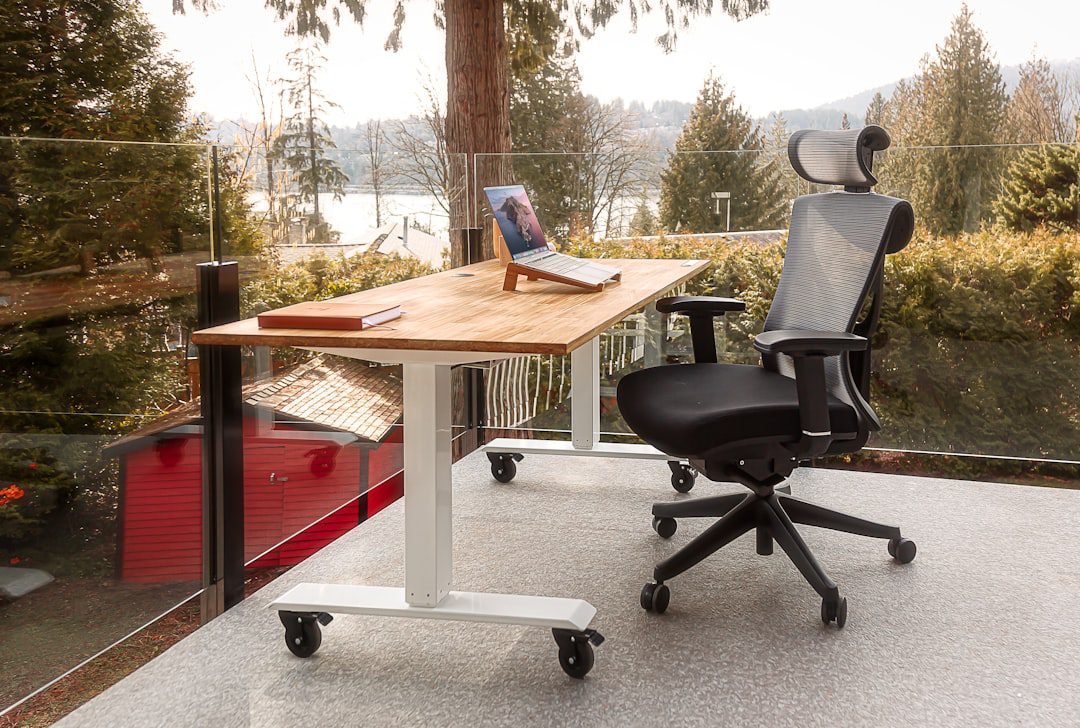
If your back aches by noon and your neck locks up by 3 PM, your workspace is working against you. This home office ergonomics review is designed to change that. After examining the most common setups used by remote professionals in 2026, one thing is clear: most people are one good chair away from a completely different workday. In this guide, we cover the gear, the layouts, and the daily habits that protect your body and sharpen your focus — without requiring a total office overhaul.
Why Ergonomics Matter More Than Ever in 2026
Remote work is no longer a perk. For millions of professionals, it is simply how work happens. As a result, the home office has become the most-used room in the house — and often the most neglected.
According to the U.S. Occupational Safety and Health Administration (OSHA), musculoskeletal disorders are among the most common workplace injuries. Furthermore, these injuries develop gradually, which means most people don’t notice the damage until it’s significant.
Here is what poor ergonomics actually costs you:
- Reduced concentration — discomfort pulls your attention away from deep work
- Lower energy — physical tension drains mental stamina faster than most people realize
- Long-term injury risk — repetitive strain, carpal tunnel, and chronic back pain are all preventable
- More sick days — neck and back pain are leading causes of missed workdays in 2026
In short, ergonomics is not about luxury. It is about sustainable performance.
Home Office Ergonomics Review: The Essential Gear
Before adjusting habits, you need the right tools. This section of our home office ergonomics review focuses on the five core pieces of equipment that make the biggest difference.
1. The Ergonomic Chair
Your chair is the foundation of your entire setup. Most office chairs — especially budget ones — lack proper lumbar support and encourage slouching within the first hour.
When evaluating a chair, look for these features:
- Adjustable lumbar support — it should sit at the curve of your lower back, not above it
- Seat depth adjustment — leave 2–3 fingers of space between the seat edge and the back of your knees
- Armrest height — your forearms should rest parallel to the floor
- Seat height range — your feet should be flat on the floor with hips at 90 degrees
Top picks in 2026: The Herman Miller Aeron (Series C for larger builds), the Steelcase Leap V2, and the budget-friendly Flexispot C7 all consistently rank well in professional ergonomic assessments.
2. The Desk
Standing desks have dominated headlines for years. However, the research in 2026 is more nuanced: alternating between sitting and standing is the real goal, not standing all day.
A sit-stand desk with memory presets makes transitioning effortless. Consider these factors:
- Height range should reach a minimum of 46–48 inches for standing use
- Stability matters — wobble at standing height is a deal-breaker for typing
- Surface area should accommodate your monitor, keyboard, and at least one peripheral without crowding
If a sit-stand desk isn’t in your budget, a monitor arm and a separate keyboard tray can replicate many of the same benefits at a fraction of the cost.
3. Monitor Placement
Monitor position is one of the most overlooked factors in any home office ergonomics review. Most people place their monitor too low or too close, which causes both neck strain and eye fatigue.
Follow these placement rules:
- Distance: 20–28 inches from your eyes (roughly arm’s length)
- Height: the top of the screen should be at or just below eye level
- Angle: tilt the screen back 10–20 degrees to reduce glare and neck extension
- Dual monitors: place the primary screen directly in front; angle the secondary screen inward at about 30 degrees
A monitor arm gives you full, tool-free adjustability and frees up valuable desk real estate. Moreover, it encourages you to actually re-position your screen instead of just tolerating a poor setup.
4. Keyboard and Mouse
Standard keyboards force your wrists into an unnatural inward rotation called ulnar deviation. Over hundreds of hours, this contributes directly to repetitive strain injuries.
Consider these upgrades:
- Split ergonomic keyboard (e.g., Logitech MX Keys S or Kinesis Freestyle2) — reduces wrist rotation significantly
- Vertical mouse (e.g., Logitech MX Vertical) — keeps the hand in a natural handshake position
- Wrist rest — use during pauses, not while actively typing
Additionally, keep your keyboard and mouse at the same level, positioned so your elbows stay close to your body.
5. Lighting
Lighting affects both eye strain and cognitive performance. Therefore, it deserves a dedicated spot in this home office ergonomics breakdown.
- Position your monitor perpendicular to windows — never directly in front of or behind one
- Use a bias light behind your monitor to reduce the contrast between the bright screen and dark background
- Choose a desk lamp with adjustable color temperature — warm light (2700K–3000K) for evenings, cool daylight (5000K–6500K) for focused daytime work
- Avoid overhead fluorescent lights that cast shadows directly onto your workspace
Ergonomic Layout: Arranging Your Workspace for Maximum Comfort
Having great gear is only half the equation. How you arrange it determines whether the benefits actually reach you.
The 90-90-90 Rule
This is the most practical starting point for any ergonomic setup adjustment. The rule is simple:
- Hips at 90 degrees
- Knees at 90 degrees
- Elbows at 90 degrees
Start here and adjust from this baseline. Furthermore, if your feet don’t reach the floor when your chair is at the right height, use a footrest — not a stack of books.
Desk Zone Organization
Organize your desk into three zones to minimize awkward reaching and unnecessary movement:
- Primary zone — items you use constantly (keyboard, mouse, notebook) within easy arm’s reach
- Secondary zone — items you use regularly but not constantly (phone, second monitor, water bottle) at a slight stretch
- Reference zone — items used occasionally (files, manuals) that require you to move to access
This approach keeps you in your neutral posture during most of the workday. As a result, you significantly reduce the cumulative strain that builds up over eight-hour sessions. For more tips on optimizing your remote workspace, check out our guide on remote work productivity tips that actually work.
Daily Habits That Reinforce Good Ergonomics
Even the best setup fails without consistent habits. In fact, movement patterns matter as much as the equipment itself.
The 20-20-20 Rule for Eye Strain
Every 20 minutes, look at something 20 feet away for 20 seconds. This simple habit dramatically reduces digital eye strain, which affects roughly 65% of screen-based workers in 2026.
Movement Breaks: The Non-Negotiable
Sitting still — even in a perfect ergonomic chair — causes muscle fatigue. Therefore, build movement into your schedule deliberately.
- Every 30–45 minutes: stand up, walk to the kitchen or window, do a quick stretch
- Every 90 minutes: a 5-minute walk or a brief standing stretch sequence
- Twice daily: a 10-minute movement break — yoga, walking, or dynamic stretching
These breaks also combat decision fatigue. In fact, our article on decision fatigue solutions that actually work explores the cognitive side of this cycle in detail.
Posture Check-Ins
Most people start the day in good posture and gradually slide into a slouch. Use these triggers for posture resets:
- Every time you open a new browser tab
- Every time you pick up your phone
- Every time you return from a break
These micro-resets take two seconds and prevent hours of accumulated strain.
Budget vs. Premium: What’s Actually Worth the Investment?
Not everyone can spend $1,500 on a chair. Fortunately, a strategic home office ergonomics review reveals that three upgrades deliver the most impact per dollar.
High ROI Upgrades (Under $150 Each)
- Monitor arm (~$30–$80) — transforms almost any monitor setup immediately
- Lumbar support cushion (~$25–$60) — improves existing chair support without replacing it
- Vertical mouse (~$40–$100) — measurably reduces wrist strain within weeks
- Footrest (~$20–$50) — essential if your desk doesn’t go low enough
Worth Saving For (Premium Investments)
- Quality ergonomic chair ($400–$1,500) — the single highest-impact purchase in any home office
- Sit-stand desk ($300–$800) — especially valuable for those working 8+ hours daily
- Quality monitor ($250–$600) — low-flicker, high-resolution displays reduce eye fatigue significantly
Moreover, many employers offer home office stipends in 2026 — check your benefits package before spending out of pocket. Additionally, ergonomic equipment is often tax-deductible for self-employed professionals.
Common Home Office Ergonomics Mistakes to Avoid
A thorough home office ergonomics review also means identifying what not to do. These are the most frequent mistakes professionals make — even well-intentioned ones.
- Using a laptop without a riser — forces you to hunch your neck down for hours; always pair a laptop with an external keyboard, mouse, and raised screen
- Sitting on a couch or bed to “work comfortably” — comfortable for 10 minutes, damaging over 4 hours
- Ignoring cable management — messy cables restrict movement and create unconscious tension
- Setting up once and never revisiting — your needs change; reassess your setup every six months
- Skipping breaks because you’re “in the zone” — flow states are valuable, but your body still accumulates strain during them
- Placing a second monitor at a 90-degree angle — causes consistent neck rotation; angle it inward toward you instead
Finally, if you are optimizing your home office as part of a broader life decluttering effort, our guide on how to declutter your life in 2026 pairs perfectly with a workspace reset.
Frequently Asked Questions
What is the most important piece of ergonomic equipment for a home office?
Your chair. It directly affects your spine, hips, and overall posture for every hour you work. A quality ergonomic chair with adjustable lumbar support, seat depth, and armrests delivers more benefit than any other single purchase. Furthermore, it makes every other adjustment easier to implement correctly.
How often should I take breaks when working from home?
At minimum, stand up and move every 45–60 minutes. A short 2–5 minute break every hour dramatically reduces muscle fatigue and improves afternoon focus. Additionally, use the 20-20-20 rule for eye strain throughout the day.
Can ergonomics actually improve my productivity?
Yes — and the research is consistent on this. Discomfort is a constant, low-level distraction that pulls cognitive resources away from your actual work. By eliminating physical strain, you free up mental bandwidth for deeper focus. Most professionals report noticeable improvements within two weeks of a proper ergonomic setup.
Is a standing desk worth buying for a home office?
For most full-time remote workers, yes. However, the goal is not to stand all day — it is to alternate between sitting and standing. A sit-stand desk with memory presets makes this effortless. If budget is a concern, a desk converter ($80–$200) offers a practical alternative to a full desk replacement.
What is the correct monitor height for a home office setup?
The top edge of your monitor should sit at or just below eye level. Most people place their monitors too low, which forces the neck to drop forward for hours. A monitor arm allows precise, tool-free adjustment and is one of the highest-value upgrades in any home office ergonomics review.
Key Takeaways
- Start with your chair and monitor position. These two elements have the highest impact on posture, comfort, and long-term physical health. Adjust them before buying anything else.
- Movement matters as much as equipment. Even a perfectly configured setup causes harm without regular breaks. Build movement triggers into your daily workflow — not as interruptions, but as performance tools.
- Ergonomics is an ongoing process, not a one-time setup. Revisit your workspace every six months, especially after changes in your workload, body, or equipment. The best home office ergonomics review is the one you do on yourself, regularly.

More from Life Stack
 Life Stack
How to Declutter Your Life 2026: A Smart Guide
Clutter isn't just physical — it's mental, digital, and scheduling noise that quietly drains your energy and focus. This guide...
 Life Stack
Home Office Ergonomics: Work Smarter, Hurt Less
Poor home office ergonomics costs professionals thousands in medical bills — and even more in lost productivity. This guide covers...
 Life Stack
Cooking Guidelines Every Busy Professional Needs
Solid cooking guidelines can transform your weekly routine from chaotic to controlled. This guide breaks down everything busy professionals need...