How to Organize Digital Files and Folders Like a Pro
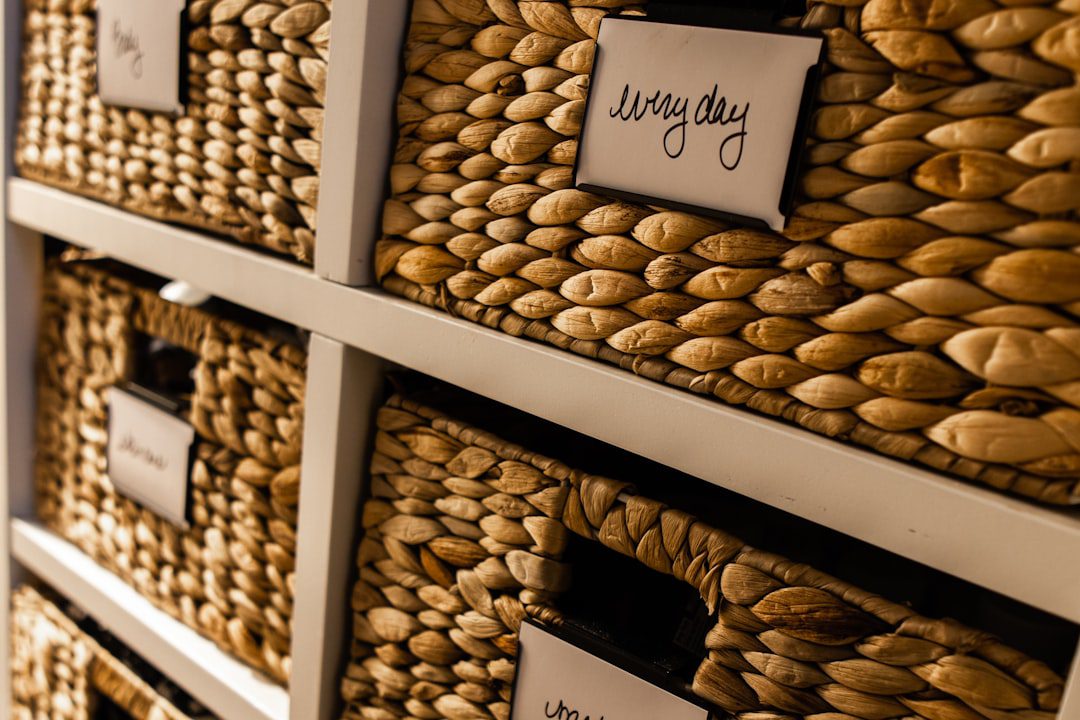
Your Digital Clutter Is Costing You More Than You Think
If you’ve ever typed “final_FINAL_v3_revised.docx” into a search bar, you already know the problem. Learning how to organize digital files and folders is one of the highest-return productivity skills a professional can develop. According to a 2023 IDC white paper, knowledge workers spend up to 30% of their workday simply searching for information. In 2026, that number hasn’t improved — it’s gotten worse, as file volumes grow and tools multiply.
The good news? A solid digital filing system is not complicated. It just requires a deliberate structure, consistent habits, and a small set of reliable tools.
This guide gives you all three.
Why Most People Fail at Digital File Organization
Most people don’t fail because they’re disorganized by nature. They fail because they never built a system — only a series of temporary fixes.
Here are the most common mistakes professionals make:
- Saving files to the desktop “for now” — and never moving them
- Using vague names like “document1.pdf” or “untitled folder”
- Creating duplicate files across multiple locations with no single source of truth
- Skipping folder hierarchies entirely and dumping everything in Downloads
- Mixing personal and professional files in the same directory
Furthermore, most people reorganize in a burst of motivation, then abandon the system within a week. The fix isn’t willpower. It’s building a structure so simple that maintenance becomes automatic.
How to Organize Digital Files and Folders: The Core Framework
Before you touch a single file, you need a mental model. Think of your file system like a physical filing cabinet. Therefore, every item needs a home — and every home needs a label.
Step 1: Start With a Top-Level Structure
Your top-level folders should be broad categories that cover every type of file you work with. Keep this list short — ideally 5 to 8 folders maximum.
For example, a freelance consultant’s top-level structure might look like this:
- 📁 Clients
- 📁 Finance
- 📁 Projects
- 📁 Personal
- 📁 Resources
- 📁 Archive
In addition, consider a _Inbox folder (the underscore pushes it to the top alphabetically). Use it as a temporary landing zone for unsorted files. Then clear it every Friday — no exceptions.
Step 2: Build Subfolders With Consistent Depth
Avoid going more than 3 levels deep in any folder hierarchy. Deeper than that, and files become nearly impossible to find without search.
A practical example for a “Clients” folder:
Clients/
  ├── Acme Corp/
  │     ├── Contracts/
  │     ├── Deliverables/
  │     └── Communications/
  └── BrightPath LLC/
        ├── Contracts/
        ├── Deliverables/
        └── Communications/
Notice how each client subfolder uses the same internal structure. This consistency is the secret. You always know where to look, regardless of which client you’re working with.
The Right Way to Name Your Files
A great folder structure means nothing if your files have terrible names. Good file naming is one of the most overlooked parts of learning how to organize digital files and folders effectively.
Use the YYYY-MM-DD Date Format
Always put dates at the beginning of a file name when date context matters. The ISO date format (YYYY-MM-DD) sorts files chronologically by default — no manual sorting required.
For example:
- ✅
2026-03-15_Acme-Proposal_v1.pdf - ❌
AcmeProposalMarch_final.pdf
Follow a Consistent Naming Convention
Pick one naming convention and stick to it. Here are two reliable options:
- Kebab-case:
project-name-date-version.ext - Underscore-separated:
project_name_date_version.ext
Most importantly, avoid spaces in file names. Spaces can break links, cause issues in scripts, and create inconsistencies across operating systems.
Include Version Numbers
Instead of “final” or “revised,” use v1, v2, v3. This approach removes ambiguity entirely. When you reach a true final version, move it to a dedicated Published or Delivered subfolder and archive the drafts.
Best Tools for Digital File Organization in 2026
The right tools make maintaining your system almost effortless. However, the tools are secondary to the structure. Don’t let app-shopping become a procrastination excuse.
That said, these are the tools professionals are actually using in 2026:
Cloud Storage and Sync
- Google Drive — Best for collaboration and Google Workspace users. Its smart search is powerful.
- Dropbox — Excellent for freelancers who need reliable cross-device sync.
- OneDrive — The natural choice for Microsoft 365 environments.
For a deeper comparison of which platform fits your needs, check out our guide to the Best Cloud Storage Services for Beginners in 2026.
File Launchers and Search Tools
- Alfred (Mac) — Finds files instantly with keyboard shortcuts. Far faster than Spotlight alone.
- Everything (Windows) — Indexes your entire drive and returns results in milliseconds.
- Raycast (Mac) — A powerful Alfred alternative with deep integrations.
Automation Tools
- Hazel (Mac) — Automatically sorts incoming files based on rules you define. For example, it can move all PDFs with “invoice” in the name directly into your Finance folder.
- File Juggler (Windows) — Similar rule-based automation for Windows users.
Moreover, browser extensions like Save to Drive let you file downloads directly into the correct folder — before they ever hit your Downloads pile.
How to Tackle a Massive Existing Mess
If your current file system looks like a digital landfill, don’t try to fix everything at once. That approach leads to overwhelm and abandonment. Instead, follow this phased approach:
Phase 1: Stop the Bleeding (Day 1)
- Create your new top-level folder structure today.
- Start using it for all new files immediately.
- Don’t touch the old mess yet. Create a folder called
_OldFiles_PreCleanupand dump everything existing into it.
Phase 2: Sort in Weekly Sprints (Weeks 2–6)
- Set a 20-minute timer once per week.
- Work through the
_OldFiles_PreCleanupfolder in batches. - Delete duplicates ruthlessly. If you haven’t opened it in 18 months, archive or delete it.
Phase 3: Lock In the Habit (Ongoing)
- Clear your _Inbox folder every Friday.
- Run a monthly “file audit” — it takes 10 minutes once you’re organized.
- Review your top-level structure every quarter. As a result, you’ll catch folder categories that no longer serve you.
Furthermore, this phased approach is the same mindset professionals use for tackling larger life-admin challenges — like building a debt payoff plan. If you’re interested in applying structured systems to your finances too, our post on How to Pay Off Debt Fast: A Proven Plan uses a similarly systematic approach.
Maintaining Your Digital Filing System Long-Term
Building the system is only half the battle. Maintenance is where most people fall apart. However, good maintenance doesn’t require hours of effort — it requires rituals.
Build a Weekly File Reset Ritual
Every week, spend 10 minutes on these three tasks:
- Empty your _Inbox folder by filing or deleting everything in it
- Clear your Downloads folder — file what matters, trash the rest
- Clear your Desktop completely
In addition, your desktop should function as a whiteboard — a temporary workspace, not permanent storage. Therefore, treat any file left on the desktop overnight as misplaced.
Apply the “One Home” Rule
Every file gets exactly one permanent home. If you need access to the same file from multiple places, use shortcuts or aliases — not duplicate copies. Duplicates are the number-one source of version confusion and storage bloat.
Archive, Don’t Delete (Until You’re Sure)
Uncertain about a file? Move it to your Archive folder with a date prefix. For example: 2026-01_Archive/. After 12 months, review the archive. Most of those files, you’ll delete without hesitation. Until then, they’re out of your way but not gone forever.
Maintaining focus at work becomes significantly easier when your environment — digital or physical — is clutter-free. For more on optimizing your mental workspace, read our post on How to Focus Better at Work (That Actually Work).
Frequently Asked Questions
What is the best folder structure for organizing digital files?
The best folder structure is one you will actually maintain. A top-level structure of 5–8 broad categories (Clients, Finance, Projects, Personal, Archive) with a maximum of 3 levels of subfolders works well for most professionals. Consistency across subfolders matters more than any specific structure.
How do I organize digital files and folders for a home office?
Start with four top-level folders: Work, Personal, Finance, and Archive. Add an _Inbox folder as a temporary drop zone. Use consistent date-based file naming (YYYY-MM-DD) and clear your Inbox every week. Keep it simple — complexity is the enemy of consistency.
How often should I reorganize my digital files?
If you maintain a weekly reset ritual (10 minutes per week), you should never need a major reorganization. A quick quarterly review to adjust folder categories is enough. However, if you’re starting from scratch, expect to spend 3–6 weekly sessions cleaning up a backlog of existing files.
Should I use cloud storage or local storage for my files?
Use both, strategically. Store active working files in cloud storage (Google Drive, OneDrive, or Dropbox) for accessibility and automatic backup. Move completed projects and archives to local or external hard drive storage to save cloud space and reduce costs. The key is syncing the two intentionally.
What file naming convention is best for professionals?
The most reliable convention is: YYYY-MM-DD_ProjectName_Description_v1.ext. This format sorts chronologically by default, includes context at a glance, and eliminates the dreaded “final_FINAL” naming spiral. Avoid spaces; use hyphens or underscores instead.
Key Takeaways: How to Organize Digital Files and Folders
- Build a top-level structure first, then fill it in. Start with 5–8 broad folder categories. Use a temporary
_Inboxfolder as a sorting buffer and clear it weekly. Consistency in subfolder design — not complexity — is what makes the system stick. - File names are just as important as folder structure. Use the YYYY-MM-DD date format, descriptive keywords, and version numbers (v1, v2, v3). Eliminate spaces and vague names like “final” or “revised” from your workflow entirely.
- Maintenance beats perfection every time. A 10-minute weekly reset — clearing your Inbox, Downloads, and Desktop — prevents clutter from ever building up again. Combine that with a quarterly folder review, and your digital filing system will run on autopilot.

More from Tool Stack
 Tool Stack
Best Productivity Apps 2026: Top Picks
The best productivity apps 2026 offers go far beyond simple to-do lists. This guide breaks down the top tools across...
 Tool Stack
Best Cloud Storage Services of 2026
Choosing the right cloud storage service can transform how you work, collaborate, and protect your files. This guide breaks down...
 Tool Stack
Best Cloud Storage Services for Beginners 2026
Choosing the best cloud storage services for beginners doesn't have to be overwhelming. This guide breaks down the top options...