Home Office Ergonomics: Work Smarter, Hurt Less
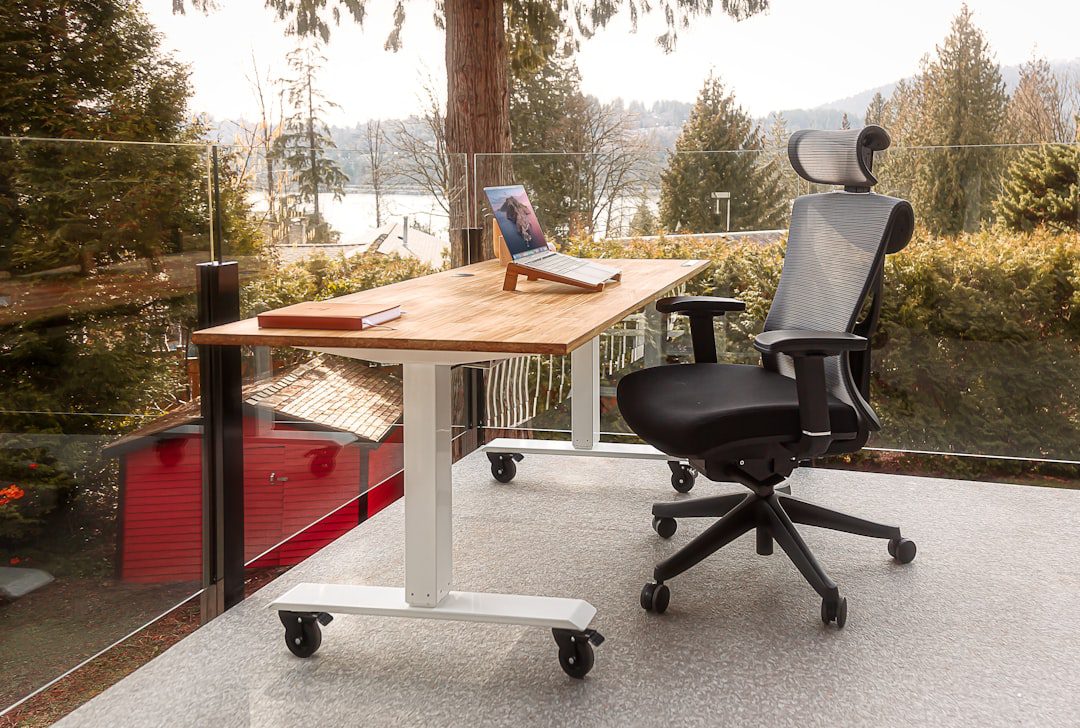
Why Your Home Office Setup Is Quietly Hurting You
You sat down at 9 a.m. with a full cup of coffee and big plans. By noon, your neck ached, your lower back throbbed, and your eyes burned. Sound familiar? Home office ergonomics — the science of designing your workspace to fit your body — is the single biggest factor separating professionals who finish the day energized from those who finish it in pain.
The problem is real. According to the U.S. Occupational Safety and Health Administration (OSHA), musculoskeletal disorders account for roughly one-third of all workplace injuries. Most remote workers build their setups based on convenience, not biomechanics. As a result, they unknowingly invite chronic pain, reduced focus, and long-term injury into their daily routine.
In this guide, you’ll get a practical, no-fluff breakdown of exactly how to fix your home workspace — step by step. Furthermore, you’ll find specific product considerations, quick wins you can implement today, and deeper adjustments worth the investment.
The Foundations of Home Office Ergonomics
Before you buy anything new, understand the core principles. Good home office ergonomics rests on four pillars: neutral body positioning, proper equipment sizing, smart lighting, and intentional movement.
Neutral Body Position: What It Actually Means
A “neutral position” keeps your joints aligned naturally — without strain or compression. Here’s what that looks like from head to toe:
- Head: Ears aligned over shoulders. No forward head lean.
- Neck: Slight natural curve inward. Not craning up or down.
- Shoulders: Relaxed and dropped, not hunched toward your ears.
- Elbows: Bent at 90–110 degrees. Resting close to your body.
- Wrists: Flat and straight while typing. No upward or downward bends.
- Hips: At a 90–100 degree angle. Thighs roughly parallel to the floor.
- Knees: At approximately 90 degrees. Feet flat on the floor or a footrest.
Most people violate at least three of these points without realizing it. Therefore, your first step is a quick self-audit at your current desk.
The Quick 60-Second Posture Audit
Sit down at your workspace right now and check each item on this list:
- Can you see your top monitor third without tilting your chin up?
- Are your shoulders relaxed — not shrugged?
- Do your feet rest flat on the floor?
- Is your lower back supported by your chair’s lumbar support?
- Are your wrists floating flat above the keyboard — not bent?
If you answered “no” to two or more, your setup needs adjustment. The good news? Most fixes cost nothing at all.
Your Chair: The Most Important Piece of Furniture You Own
No single piece of equipment shapes your home office ergonomics more than your chair. Yet most remote workers sit in dining chairs, bar stools, or decade-old office chairs that offer zero lumbar support.
What to Look For in an Ergonomic Chair
You don’t necessarily need to spend $1,500 on a Herman Miller. However, you do need these features:
- Adjustable seat height: Your feet should rest flat on the floor.
- Lumbar support: Ideally adjustable in height and depth to fit your spine’s curve.
- Adjustable armrests: They should support your forearms without forcing your shoulders up.
- Seat depth adjustment: Leave 2–3 fingers of space between the seat edge and the back of your knees.
- Tilt tension control: Allows you to lean back slightly, which reduces spinal disc pressure.
Chair Height: Get This Right First
Chair height is the foundational adjustment. Set it so your thighs are roughly parallel to the floor. Moreover, your feet should rest fully flat — not tiptoeing or dangling. If your desk is too high after you set chair height correctly, use a footrest rather than raising the chair.
A simple footrest (even a thick book works temporarily) can transform your seating comfort in under 30 seconds.
Monitor Placement: Protecting Your Neck and Eyes
Incorrect monitor placement causes two of the most common remote work complaints: neck pain and eye strain. Fortunately, fixing it is straightforward.
Height and Distance Rules
Follow these evidence-based guidelines:
- Top of the screen should sit at or slightly below eye level. This prevents chin-up posture.
- Distance from your eyes should be 20–28 inches — roughly arm’s length away.
- Screen tilt: Angle the monitor back 10–20 degrees to reduce neck flexion.
- Dual monitors: Place your primary monitor directly in front of you. Put the secondary screen to the side at the same height.
Reducing Eye Strain at Your Workstation
Monitor position matters, but so does what’s on the screen. In addition to correct placement, apply these adjustments:
- Enable Night Mode or Warm Color Temperature after 6 p.m. to reduce blue light exposure.
- Use the 20-20-20 rule: Every 20 minutes, look at something 20 feet away for 20 seconds.
- Reduce screen brightness to match your room’s ambient light. A screen that glows like a flashlight causes rapid eye fatigue.
- Position your monitor perpendicular to windows, not facing them, to minimize glare.
These small changes make a significant difference — especially during 8-hour workdays.
Desk Setup and Keyboard/Mouse Positioning
Your desk height determines everything downstream. Most standard desks sit at 29–30 inches, which works well for someone around 5’9″–5’11”. However, if you’re shorter or taller, you may need to adjust.
The Ideal Desk Height Formula
Here’s a simple way to find your correct desk height:
- Sit in your correctly adjusted chair.
- Let your arms hang naturally at your sides.
- Bend your elbows to 90 degrees.
- Your forearms should rest flat on the desk surface at that angle.
If the desk is too high, raise your chair and use a footrest. If it’s too low, desk risers or a height-adjustable desk solve the problem.
Keyboard and Mouse: Common Mistakes
Most people place their keyboard too far away. As a result, they reach forward constantly, which strains shoulders and wrists. Instead, keep these points in mind:
- Keyboard position: Place it close enough that your elbows remain at roughly 90 degrees with minimal reach.
- Wrist angle: Keep wrists flat or slightly negative (sloping slightly downward toward the keyboard). Avoid upward wrist extension.
- Mouse proximity: Keep your mouse directly beside your keyboard, on the same level surface.
- Consider a wrist rest: Use it during pauses — not while actively typing, which actually increases wrist pressure.
Standing Desks: Are They Worth It in 2026?
Standing desks have earned their reputation. Research consistently shows that alternating between sitting and standing reduces lower back pain and improves energy levels. Most ergonomics experts in 2026 recommend a sit-stand ratio of roughly 1:1 — 30 minutes sitting, 30 minutes standing.
If a full standing desk isn’t in the budget, a desktop converter (a riser that sits on top of your existing desk) offers a solid middle ground for $100–$250. You can also check out our guide on how to organize your digital workspace like a pro to pair a clean physical setup with an equally clean digital one.
Lighting, Temperature, and the Often-Ignored Workspace Variables
Strong home office ergonomics isn’t limited to furniture and screens. Your environment — including lighting and temperature — directly influences your posture, alertness, and physical wellbeing.
Lighting Done Right
Poor lighting forces you to lean toward your screen, squint, or tilt your head awkwardly. Here’s how to set it up properly:
- Natural light is best — position your desk parallel to windows, not facing them.
- Use a desk lamp with adjustable color temperature for task lighting. Aim for 4000K–5000K (cool white) during work hours for alertness.
- Avoid overhead lighting directly above your screen. It creates glare on the monitor and eyestrain.
- Consider a bias light (an LED strip behind your monitor) to reduce contrast fatigue during long sessions.
Temperature and Air Quality
The ideal office temperature for cognitive performance sits between 70–77°F (21–25°C), according to research from the National Institute for Occupational Safety and Health (NIOSH). Furthermore, stale air reduces oxygen availability, which creates mental fog and fatigue.
- Open a window for at least 15 minutes daily to refresh air circulation.
- Add a small desk plant — not just for aesthetics, but for modest air quality improvement.
- Use a small fan or HVAC adjustment to maintain a consistent temperature throughout the day.
Movement Breaks: The Missing Piece of Home Office Ergonomics
Here’s the truth most ergonomics articles skip: no static setup, no matter how perfect, compensates for sitting still for hours. Movement is non-negotiable.
If you want to support your focus and your body simultaneously, read our post on how to focus better at work — it pairs perfectly with an ergonomic routine.
The Movement Schedule That Works
Build micro-movement into your workflow using this simple framework:
- Every 20–30 minutes: Stand up, shift posture, or do a quick stretch (30–60 seconds).
- Every 60 minutes: Take a 5-minute walking break. Walk to the kitchen, do a lap around your home, or step outside briefly.
- Every 2 hours: Do a 10-minute active reset — light stretching, mobility work, or a brief walk outside.
3 Quick Desk Stretches for Remote Workers
- Neck rolls: Slowly roll your chin to your chest, then rotate left and right. Hold 10–15 seconds each side.
- Chest opener: Clasp your hands behind your back, squeeze your shoulder blades together, and hold for 15–20 seconds. This directly counters the “hunching forward” posture that screens create.
- Hip flexor stretch: Step one foot forward into a lunge position from standing. Hold for 20–30 seconds each side. After hours of sitting, this one is transformative.
Set a timer if you have to. Most professionals won’t move unless prompted. Moreover, apps like Stretchly (free) can automate break reminders directly on your desktop.
Building Your Ergonomic Home Office on Any Budget
You don’t need to spend thousands to achieve solid home office ergonomics. Here’s a tiered approach based on budget:
Free Fixes (Do These Today)
- Raise your monitor using books or a box to reach eye level.
- Move your keyboard closer to reduce shoulder reach.
- Sit back fully in your chair and use a rolled-up towel as lumbar support.
- Enable Night Mode on your monitor and devices.
- Set a recurring 30-minute phone alarm to stand and stretch.
Under $150 Investments
- Monitor stand or riser ($15–$40): Elevates your screen to proper eye height.
- Footrest ($25–$50): Essential if your chair doesn’t reach optimal height without raising your desk.
- Vertical mouse ($30–$80): Keeps the wrist in a neutral “handshake” position, dramatically reducing wrist strain.
- Lumbar support cushion ($25–$60): A quick upgrade for any non-ergonomic chair.
$150–$500 Upgrades Worth Considering
- Ergonomic chair ($150–$400): Look for brands like Branch, Autonomous, or Flexispot for solid entry-level ergonomic options in 2026.
- Desktop standing converter ($100–$250): Adds sit-stand capability without replacing your entire desk.
- External keyboard and mouse combo ($50–$150): Critical for laptop users who would otherwise hunch over a low screen.
Key Takeaways: Home Office Ergonomics in 2026
- Neutral positioning is the foundation. Adjust your chair height first, then your desk, then your monitor. Work from the bottom up.
- No setup replaces movement. Schedule micro-breaks every 20–30 minutes. Your posture can be perfect and still cause damage if you don’t move regularly.
- Start with free fixes. Raise your monitor with books, move your keyboard closer, and roll a towel for lumbar support — before spending a single dollar.
Frequently Asked Questions
What is the most important element of home office ergonomics?
Chair height and lumbar support are the most critical starting points. A correctly adjusted chair establishes the foundation for everything else — monitor height, keyboard placement, and posture. If your chair is wrong, no other adjustment fully compensates.
How high should my monitor be for proper home office ergonomics?
Position the top of your monitor at or slightly below eye level, approximately 20–28 inches from your face. This prevents both chin-up and chin-down postures, which are leading causes of neck and upper back pain in remote workers.
Can I achieve good ergonomics without spending a lot of money?
Absolutely. Many of the highest-impact ergonomic improvements cost nothing. Raising your monitor with books, using a rolled towel for lumbar support, moving your keyboard closer, and setting movement break reminders are all free — and genuinely effective.
How often should I take breaks when working from home?
Ergonomics experts recommend standing or shifting position every 20–30 minutes, taking a 5-minute walking break every hour, and a more active 10-minute break every two hours. The key is consistency — even short breaks prevent the cumulative strain that leads to chronic pain.
Is a standing desk worth it for home office ergonomics?
Yes — but only if you actually use it. The benefit comes from alternating between sitting and standing (roughly 1:1), not from standing all day. If a full standing desk is outside your budget, a desktop converter offers similar benefits at a fraction of the cost.

More from Life Stack
 Life Stack
How to Be More Social: A Practical Guide
Struggling to connect with others? This guide breaks down exactly how to be more social — from rewiring your mindset...
 Life Stack
Best Books for Self Improvement in 2026
The best books for self improvement don't just inspire you — they give you a concrete system to change your...
 Life Stack
How to Make Friends as an Adult Guide
Making friends as an adult is genuinely hard — but it doesn't have to stay that way. This guide breaks...